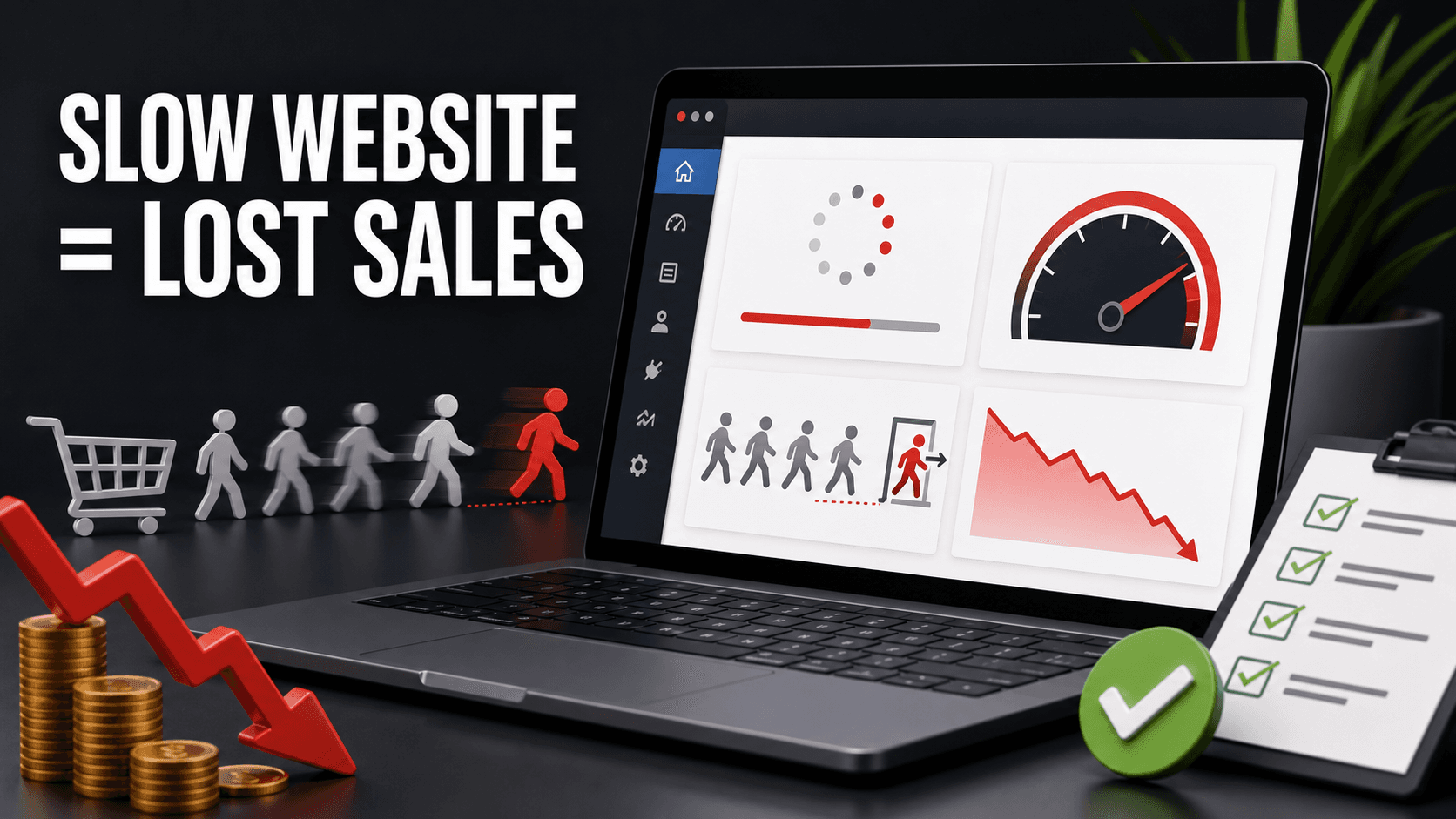
A slow website costs you money. Visitors leave, Google ranks you lower, and every extra second of load time quietly drives people to your competitors. The good news: most WordPress speed problems come from a handful of fixable causes.
This is the checklist I actually use when a client's site feels sluggish. Work through it top to bottom — the early items give the biggest wins for the least effort.
First, measure. Don't guess.
Before changing anything, get a baseline. Run your site through:
- PageSpeed Insights (Google's own tool) — shows Core Web Vitals, which directly affect ranking
- GTmetrix — good waterfall view of what loads slowly
Write down your current load time and scores. You can't tell if a fix worked without a before-and-after. Test the same page a few times, since the first load is often slower than repeat visits.
1. Choose good hosting (the fix nobody wants to hear)
Cheap shared hosting is the single most common reason WordPress sites are slow. You can optimize everything else perfectly and still be held back by a server sharing resources with hundreds of other sites.
If your site is important to your business, use quality hosting — managed WordPress hosting or a solid provider with SSD storage and a modern PHP version. This one change often does more than every plugin combined.
While you're there: make sure you're running PHP 8.1 or newer. Older PHP versions are dramatically slower, and many sites are still stuck on outdated ones without the owner knowing.
2. Install a caching plugin
Caching is the highest-impact thing you can do inside WordPress. Instead of rebuilding every page from the database on every visit, the server saves a ready-made version and serves that.
Good options: WP Rocket (paid, easiest), or free alternatives like W3 Total Cache or LiteSpeed Cache (if your host supports it). Install one, turn on page caching, and re-test. Most sites see an immediate jump.
3. Optimize your images
Images are almost always the heaviest thing on a page. A single unoptimized photo can be larger than your entire rest of the page combined.
Three things to do:
- Compress images before or after upload (plugins like ShortPixel or Smush do this automatically)
- Serve modern formats like WebP, which are much smaller than JPG or PNG
- Lazy load images so they only download when the visitor scrolls to them (WordPress does this by default now, but confirm it's on)
Never upload a 4000px photo straight from your phone and let the browser shrink it. Resize it to the size it'll actually display.
4. Cut down on plugins
Every plugin adds code, and some add a lot. It's not strictly about the number — one badly built plugin can slow a site more than twenty good ones. But in practice, fewer plugins means fewer problems.
Go through your plugin list and deactivate anything you're not actively using. Delete it, don't just deactivate. Be especially wary of plugins that load scripts on every page (sliders, page builders, social feeds).
5. Use a CDN
A content delivery network stores copies of your site on servers around the world, so a visitor in Tallinn and a visitor in New York both load it from somewhere nearby.
Cloudflare has a genuinely useful free tier that also adds caching and security. For most small business sites, setting up free Cloudflare is a quick win.
6. Clean up your database
Over time WordPress accumulates junk: post revisions, spam comments, expired transients, leftover data from deleted plugins. This bloats your database and slows queries.
A plugin like WP-Optimize cleans this up safely. Run it occasionally, not obsessively. Always back up before a database cleanup.
7. Minify and combine files
Your site loads CSS and JavaScript files. Minifying strips out unnecessary spaces and characters; combining reduces the number of separate requests. Most caching plugins (WP Rocket, LiteSpeed) do this with a checkbox.
One caution: this step occasionally breaks page layouts or functionality. Turn it on, then click through your site to check nothing looks broken. If something breaks, turn off "combine" and keep just "minify".
8. Pick a lightweight theme
Some themes ship with enormous amounts of code and features you'll never use. If your site is slow at the foundation, no plugin fully fixes it.
Lean, well-coded themes (like GeneratePress, Kadence, or Astra) load fast out of the box. If you're starting fresh or considering a redesign, this matters more than most people realize.
The realistic order to work through this
If you only have an hour, do these three:
- Install a caching plugin
- Compress and lazy-load images
- Set up free Cloudflare
That covers the majority of speed problems on a typical WordPress site. The rest are refinements.
When to call a developer
Some slowdowns aren't fixable with plugins — a bloated theme, poorly written custom code, a database that needs real optimization, or hosting that simply can't keep up. If you've worked through this checklist and your site is still slow, the problem is usually deeper in the setup, and that's worth a professional look.